Halloween Sale Limited Time 70% Discount Offer - Ends in 0d 00h 00m 00s - Coupon code: merry71

Free Apple Device Support Exam (SUP-2026) Practice Questions

Question # 41

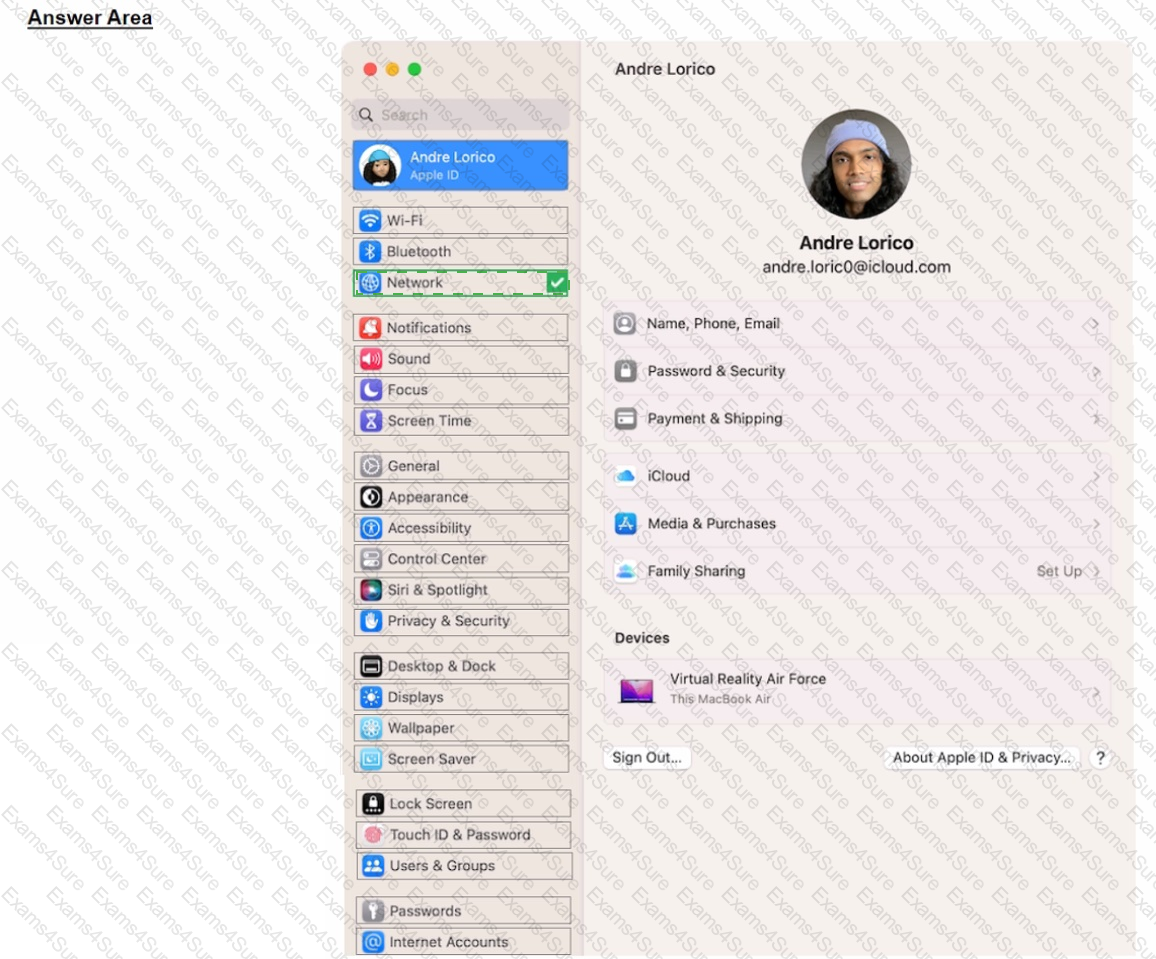
Match the macOS library resources listed on the left to the descriptions on the right by dragging responses to the correct target areas. Responses may be used once, more than once, or not at all.
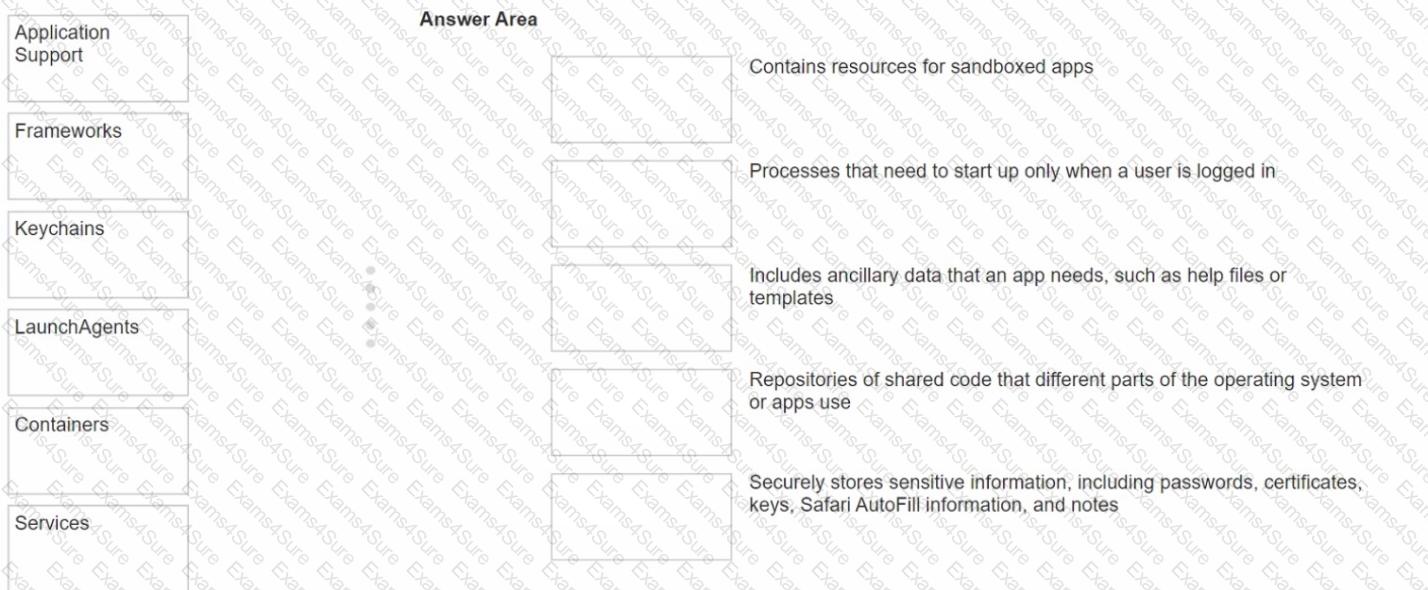
Question # 41

Options:

Discussion 0
Question # 42

What MUST you do before you reach the macOS Recovery options when your Mac with Apple silicon has FileVault or Activation Lock turned on?

Options:

A.  

Access the Startup Security Utility and enter the administrator ' s six-digit passcode to unlock the system.

B.  

Enter the FileVault recovery key, then select an administrator user account.

C.  

Log in using the administrator ' s Apple ID and two-factor authentication.

D.  

Select one of the displayed administrator accounts, then provide the account ' s password.

Discussion 0
Question # 43

Which IP address might indicate a DHCP issue?

Options:

A.  

10.0.1.17

B.  

169.254.47.72

C.  

192.168.17.12

D.  

172.27.13.47

Discussion 0
Question # 44

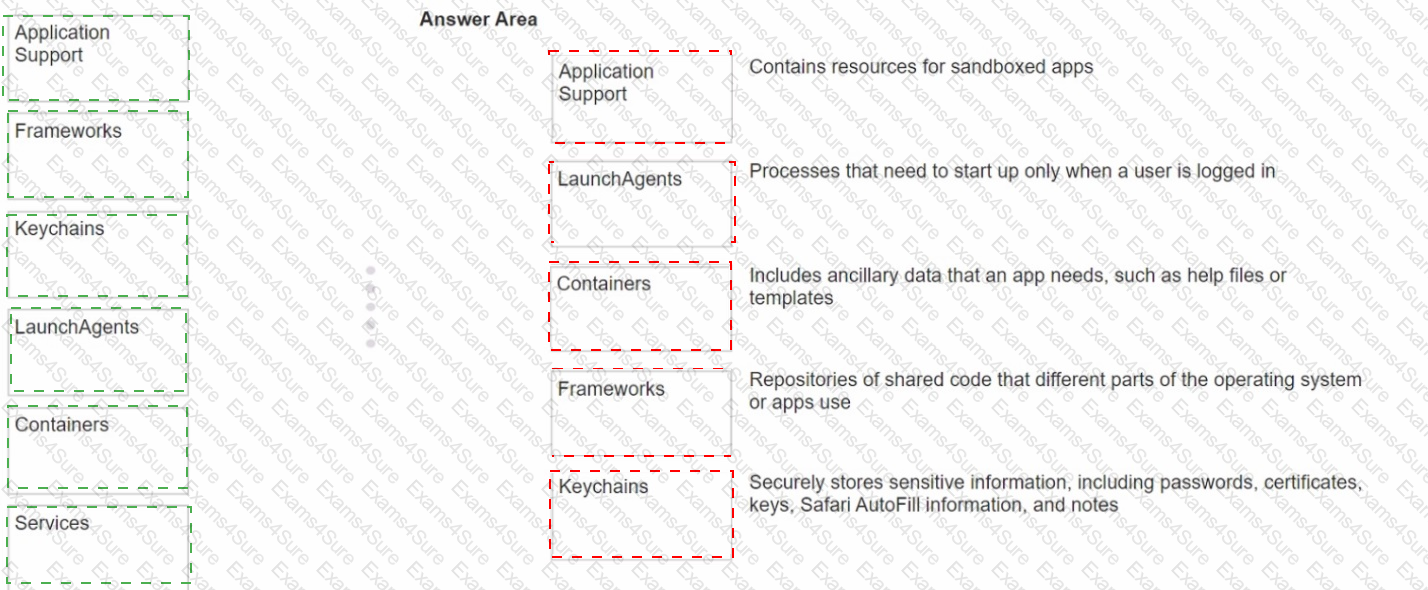
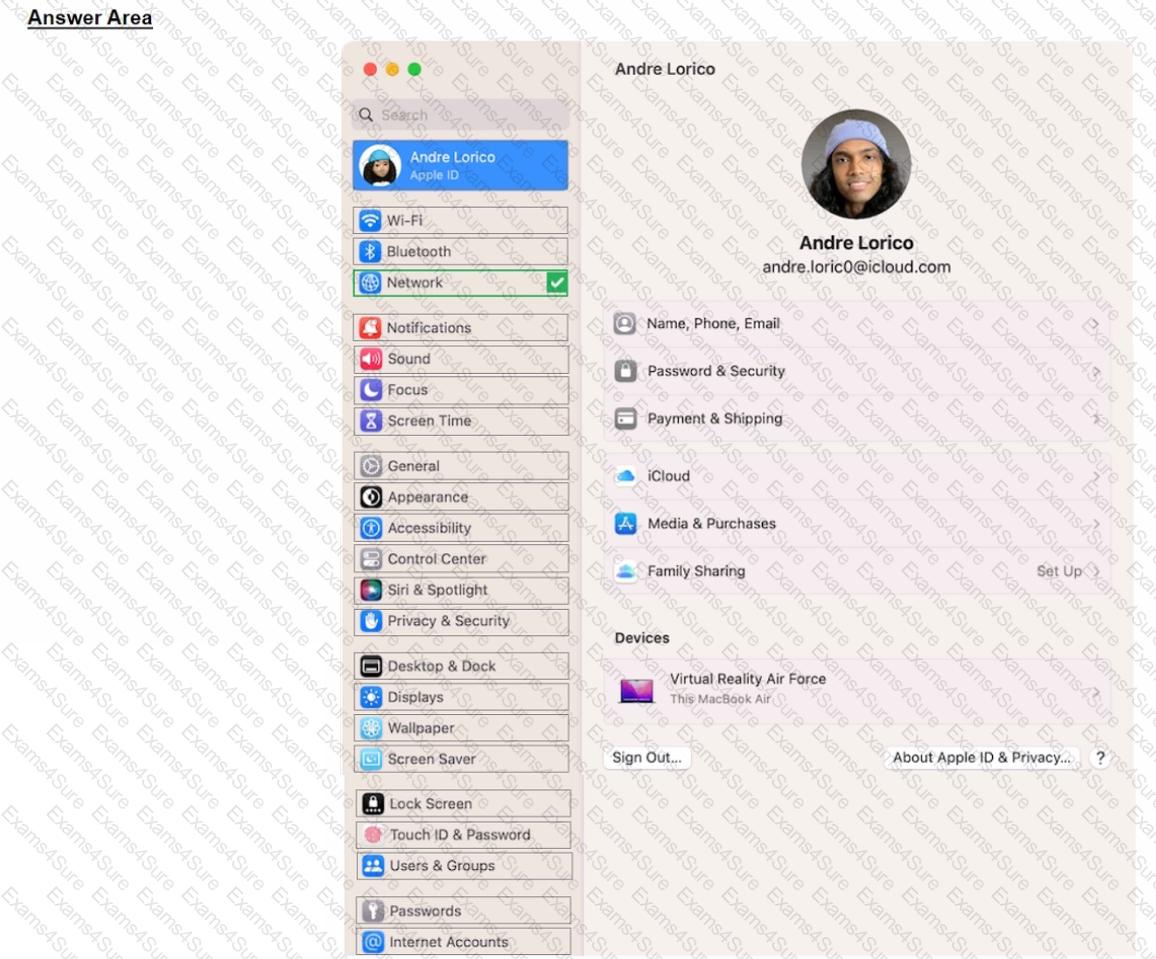
Scenario

Andre created a Keynote presentation on his iPad that he wants to access on the desktop of his MacBook Air.

Select the setting in the sidebar that Andre should turn on to access iCIoud Drive on his Mac.
Question # 44

Options:

Discussion 0
Question # 45

Which action in Apple Configurator for Mac should you select to retain user data (if recoverable) if iPhone or iPad devices are unresponsive or in recovery mode?

Options:

A.  

Restore

B.  

Revive

C.  

Update

D.  

Erase all Content and Settings

Discussion 0
Question # 46

You are trying to connect a podcast mic to your mac. You go into Sounds, but the mic isn ' t appearing an as option. Where else can you check to see if the mic is properly connected to your mac?

Options:

A.  

System Information > Hardware

B.  

System Information > Devices

C.  

System Settings > Printers & Devices

D.  

System Settings > Hardware

Discussion 0
Question # 47

How do you start up in safe mode on a Mac with Apple silicon?

Options:

A.  

1. Shut down your Mac, Turn on your Mac and continue to press and hold the power button. O

A.  

2. When the startup options window appears, release the power button.

3. Select your startup disk, press and hold the Shift key, click Continue in Safe Mode, then release the Shift key.

4. Log in to your Mac.

B.  

1. Connect to power, then shut down your Mac.

B.  

2. Press and hold the power button for three seconds, then remove power for at least 10 seconds.

3. Wait for the Continue in Safe Mode button to appear.

4. Log in to your Mac.

C.  

1. Shut down your Mac. then quickly press the power button three times. O

C.  

2. Wait until the startup options window appears.

3. Select your startup disk, then press and hold the Shift key until the Continue in Safe Mode button appears

4. Continue to press and hold the Shift key until the Login window appears or you ' re asked to log in again.

D.  

1. Shut down your Mac, then press and hold the power button for three seconds.

2. When the startup options window appears, select your startup disk.

3. Click the Continue in Safe Mode button.

4. Log in to your Mac.

Discussion 0
Question # 48

Which Apple technology lets you wirelessly connect to a printer without downloading or installing any drivers?


Options:

A.  

AirPrint

B.  

Printer Sharing

C.  

ePrint

Discussion 0
Question # 49

What ' s the first action you should try when an app is unresponsive?

Options:

A.  

Contact the developer

B.  

Force the app to quit and reopen it

C.  

Update iOS or iPadOS

Discussion 0
Question # 50

Where do you delete users in System Settings?

Options:

A.  

Navigate to System Settings — ► Users & Groups.

B.  

Click the (i) button next to the user you would like to delete on Mac.

C.  

Select Delete Account.

Discussion 0

Apple-Device-Support PDF

Apple-Device-Support PDF (Printable)
$46.5
$154.99

Apple-Device-Support Testing Engine

Apple-Device-Support PDF (Printable)
$51
$169.99

Apple-Device-Support PDF + Testing Engine

Apple-Device-Support PDF (Printable)
$63.9
$212.99

Free Exams Sample Questions